lunedì 26 febbraio 2024

AX 2012: The request was aborted: Could not create SSL/TLS secure channel

The error you're encountering, "The request was aborted: Could not create SSL/TLS secure channel," can occur due to various reasons when working with certificates and TLS in .NET environments. Here are some troubleshooting steps and solutions you can consider to resolve this issue:

1. Ensure the Certificate is Correctly Installed

  • Correct Store Location: Make sure the certificate is installed in the correct store and location. You mentioned using StoreLocation.LocalMachine; ensure that the certificate is indeed there and not mistakenly placed in StoreLocation.CurrentUser.

  • Permissions: The account under which your application runs might not have permissions to access the certificate from the LocalMachine store. You might need to grant the appropriate permissions to the account for the certificate. This is especially relevant for web applications running under specific service accounts.
  1. Find the Certificate in MMC:

    • Open the Microsoft Management Console (MMC) by pressing Win + R, typing mmc, and pressing Enter.
    • Add the Certificate Snap-in for the Local Computer account.
    • Navigate to the Personal/Certificates folder and find your certificate.
  2. Manage Private Key Permissions:

    • Right-click on the certificate, go to All Tasks > Manage Private Keys.
    • This opens a permission dialog where you can add the user account under which your application runs.
    • Grant at least Read permission to the account. For web applications, this is often the application pool identity, such as IIS AppPool\YourAppPoolName for IIS-hosted apps.

2. Use the Correct Certificate

Ensure you are loading the correct certificate by checking its thumbprint or subject name. It's easy to load the wrong certificate if not careful.

3. Enable TLS 1.2 in Your Application

If your application does not explicitly enable TLS 1.2, it might attempt to use an older, less secure protocol. You can enforce TLS 1.2 with the following line of code:

csharp
System.Net.ServicePointManager.SecurityProtocol = System.Net.SecurityProtocolType.Tls12;

Place this line at the start of your application, before making any requests. This ensures that your application explicitly uses TLS 1.2 for its secure connections.

4. Check Certificate Chain and Expiry

  • Certificate Chain: Ensure that the entire certificate chain is trusted by the machine. Sometimes, intermediate certificates are missing or not correctly installed.
  • Expiry: Check if the certificate or any certificate in the chain has not expired.

5. Debugging SSL/TLS Issues

  • Logging: Use logging to capture more details about the failure. .NET can provide detailed logs that can help pinpoint the issue.
  • Network Monitoring Tools: Tools like Wireshark can help you see the TLS handshake and where it might be failing.
  • Microsoft Management Console (MMC): Use MMC to inspect the certificates installed on the machine to ensure they are correctly installed and have the necessary private keys.

6. Application Pool Identity (For Web Applications)

If you're developing a web application, ensure that the application pool identity has access to the certificate. This can be an issue when certificates are stored in the LocalMachine store.

7. Update .NET Framework

Ensure you're using a version of the .NET Framework that supports TLS 1.2 fully and has the latest security patches. Sometimes, simply updating .NET can resolve these issues.

martedì 2 febbraio 2021

D365FFO: Export data entity by Code X++

A simple way to export a data entity, using the powerful data management framework.

You need a definition group, where the entity is mapped and all parameters are set, this script allow you to simple get an output file. You can set or not the pushing method, in my case i need an option to force full puch when a entity is mapped using incremental pushing.


DMFDefinitionGroupName definitionGroupName;
DMFEntityName entityName;
DMFSourceName sourceName;
DMFExecutionId executionid = "..."; //Your unique execution identifier
DMFDefinitionGroup definitionGroup = DMFDefinitionGroup::find(definitionGroupName, true);

DMFEntityExporter exporter = new DMFEntityExporter();
Description description = "..."

DMFDefinitionGroupEntity definitionGroupEntity = DMFDefinitionGroupEntity::find(
	definitionGroupName",
	entityName,
	true);
	
DMFDefinitionGroupExecution::serviceInsertOrDisplay(definitionGroup,
	executionid,
	definitionGroupEntity.Entity,
	definitionGroupEntity.SampleFilePath,
	definitionGroup.Description,
	'',
	'',
	'',
	NoYes::Yes,
	DMFFileType::File,
	1,
	'',
	false,
	curExt());

DMFDefinitionGroupExecution definitionGroupExecution = DMFDefinitionGroupExecution::find(
	definitionGroupName,
	entityName,
	executionid,
	true);

ttsBegin;
definitionGroupExecution.selectForUpdate(true);
definitionGroupExecution.ExecuteTargetStep = NoYes::Yes;
if (...) //Full push condition
{
	definitionGroupExecution.DefaultRefreshType = DMFRefreshType::FullPush;
}
definitionGroupExecution.Update();
ttsCommit;

DataImportFramework::MoveToStaging(executionid);

SharedServiceUnitFileID fileId = DMFPackageExporter::exportToFileV2(
	definitionGroupName,
	executionid,
	entityName,
	sourceName);

mercoledì 27 gennaio 2021

D365FFO: Start a Virtual Machine (Cloud hosted) using Powershell

The simplest way to wake up and start a cloud hosted virtual machine from your commmand line.

The authentication method is prompted login, but you can autheticate using another method as mentioned here: https://docs.microsoft.com/en-us/powershell/module/azurerm.profile/connect-azurermaccount?view=azurermps-6.13.0

1. Run powersheel

2. Connect-AzureRmAccount

3. Start-AzureRmVM -ResourceGroupName "yourresourcegroupname" -Name "maschineName"

More info here: https://docs.microsoft.com/en-us/powershell/module/azurerm.compute/?view=azurermps-6.13.0#virtual-machines

venerdì 22 gennaio 2021

D365FFO: Export data entity by code X++

 This is the code for exporting data entity using X++

Note: Export is done using batch job, consider it in case of used that on a performance requirement implementation

try
{
EntityName entityName = DMFEntity::findFirstByTableId(tableNum(VendVendorV2Entity)).EntityName;

Query query = new Query(DMFUtil::getDefaultQueryForEntity(entityName));
QueryBuildDataSource qbds = query.dataSourceTable(tableNum(BankPositivePayExportEntity));
DMFEntityExporter exporter = new DMFEntityExporter();
fileId = exporter.exportToFile(entityName,
definitionGroupName,
'', //Optional: ExecutionID
"CSV", //Optional::SourceName
#FieldGroupName_AllFields, //Optional field selection
query.pack(), //Optional: Filtered Query
curExt() //Optional: DataAReaId
);

if (fileId != '')
{
str downloadUrl = DMFDataPopulation::getAzureBlobReadUrl(str2Guid(fileId));

Filename filename = strFmt('export.csv');
System.IO.Stream stream = File::UseFileFromURL(downloadUrl);
File::SendFileToUser(stream, filename);
}
else
{
throw error("DMF execution failed and details were written to the execution log");
}
}
catch
{
error("error occurred while exporting");
}

venerdì 5 gennaio 2018

D365FFO: System.InvalidOperationException. Only properties of simple type can be key properties.

Actually there is a Know BUG if you use ODATA references from NUGET.


If a data entity has an enum type field on the entity primary key, the system will report this error:


An unhandled exception of type ' System.InvalidOperationException' occurred in Microsoft.OData.Client.dll
Additional information: The key property 'Type' on for type
'ProductsApp4.Microsoft.Dynamics.DataEntities.LegalEntityContact' is of
type 'System.Nullable`1[[ProductsApp4.Microsoft.Dynamics.DataEntities.LogisticsElectronicAddressMethodType, ProductsApp4, Version=1.0.0.0, Culture=neutral, PublicKeyToken=null]]', which is not a simple type. Only properties of simple type can be key properties.


To resolve the issue, remove NUGET references from the project and use this custom OData dlls: in https://github.com/Microsoft/Dynamics-AX-Integration/tree/master/Packages


Pay attention if you are installing client on OS is Win7 x64 or Vista x64 and you got an error something like that:


{"Could not load file or assembly 'TheAssemblyYouHaveReferenced' or one of its dependencies. Strong name validation failed. (Exception from HRESULT: 0x8013141A)":"TheAssemblyYouHaveReferenced'}


Refer to this article: https://blogs.msdn.microsoft.com/keithmg/2012/03/20/strong-name-validation-failed-exception-from-hresult-0x8013141a/

giovedì 4 gennaio 2018

D365FFO: The underlying connection was closed: An unexpected error occurred on a send when try to connect ODATA to UAT or PROD report error

As reported here https://community.dynamics.com/ax/f/33/t/227417

When you try to connect to UAT or PROD environement using ODATA the system will report this error: The underlying connection was closed: An unexpected error occurred on a send

Adding this line of code on connection

System.Net.ServicePointManager.SecurityProtocol = System.Net.SecurityProtocolType.Tls12;

venerdì 22 dicembre 2017

D365FFO: Importing customers using data entity does not init value from customer group

Importing customers using dataentity does not init data from customer group, for example Payment Terms does not automatically inizialized from group.

This extension on CustCustomerEntity data entity will fix that problem

[ExtensionOf(dataentityviewstr(CustCustomerEntity))]
final class CustCustomerEntity_Extension
{
    [DataEventHandler(tableStr(CustCustomerEntity), DataEventType::MappedEntityToDataSource)]
    public static void CustCustomerEntity_onMappedEntityToDataSource(Common _sender, DataEventArgs _eventArgs)
    {
        CustCustomerEntity custCustomerEntity = _sender;
        DataEntityContextEventArgs dataEntityContextEventArgs = _eventArgs;

        DataEntityDataSourceRuntimeContext _dataSourceCtx = dataEntityContextEventArgs.parmEntityDataSourceContext();
        if (_dataSourceCtx.name() == dataEntityDataSourceStr(CustCustomerEntity, CustTable))
        {
            CustTable custTable = _dataSourceCtx.getBuffer();
            custTable.initFromCustGroup(CustGroup::find(custTable.CustGroup));
        }
    }
}

Apply to D365FFO Platform Update 11 Spring 2017

giovedì 20 luglio 2017

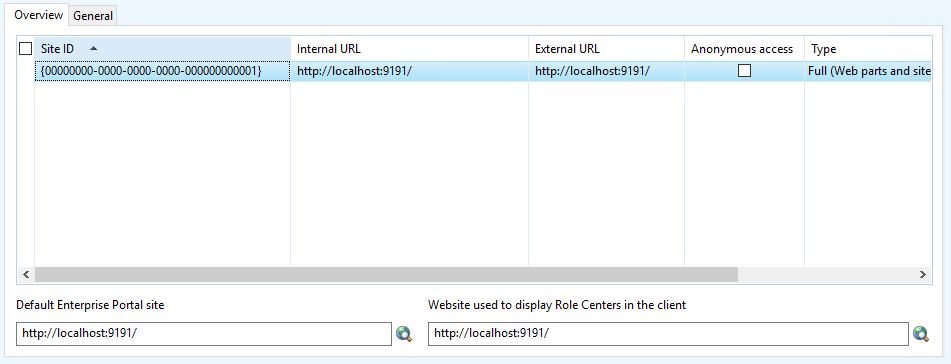
AX2012: Force ROLE CENTER page to your custom page

In case of you don't have the Enterprise Portal installed or you system (or you don't want install it) but you want the show your own custom page to users on Role Center into Dynamics AX 2012, for example your intranet or sharepoint website, you can do it quite simple.

Attention: This is a not supported procedure, do it only for testing purpose

These are steps:

  • Create on localhost for example a WEBSITE and put inside a ASPX page


  • Comment out lines 11 and 12 on Form EPWebSiteParameters > Data Sources > WebSiteTable > InternalUrl > validate method


  • Insert your website inside enterprise portal configuration (System Administration > Setup > Enterprise Portal > WebSite)


  • Link your user to a EPRoleCenter Profile (System Administration > Common > Users > User profiles) for example Accountant
     
  • Modify method getCurrentUsersHomepageURLPath of ProfileManager class, comment out whole code and return your own ASPX page, for mine example default.aspx

  • Close Dynamics AX client and reopen it, now your role center page is your own page

The link can be something like this:
menuitemaction://CueRun+CueId=35637150593/

In this case the form related to Cue is opened

Links are catched by method processLink of SysHelp, refer to that class or standard rolecenter links for more information to create your own custom role page.


giovedì 5 gennaio 2017

HOWTO: Run a BATCH using x++ (Helps for debug batch's in a simple way)

On AX2012 batch run always over a CIL context.
For debugging a BATCH without attach Visual Studio to AOS instance you can run in this way:

1. Create the batch job and assing a batch group not managed by a batch server
2. Create this method on BatchRun class:

server static public void runJobStaticCodeIL(RecId batchId)
{
    container ret;
    XppILExecutePermission  xppILExecutePermission;
    ;

    xppILExecutePermission = new XppILExecutePermission();
    xppILExecutePermission.assert();

    ret = runClassMethodIL(classStr(BatchRun), staticMethodStr(BatchRun, runJobStaticCode), [batchId]);

    CodeAccessPermission::revertAssert();
}

3. On batch activity get the JOB ID
2. Run the follow script

static void batchRun(Args _args)
{
    Batch batch;
    ;
    select batch where batch.BatchJobId == 5637161890;
    BatchRun::runJobStaticCodeIL(batch.RecId);
}

Now you can debug it!

martedì 28 giugno 2016

TIP: Pay attention when use caching display methods on forms

A tipical performance tip is to put all display methods on datasource cache:
https://msdn.microsoft.com/en-us/library/aa596691.aspx

Using something like that on init method of datasource
this.cacheAddMethod(tableMethodStr(CustTable, Name));

Pay attention, the value of all cached methods is set when data is fetched from the back-end database. If you put a display method on a separated tab, not vibile when the form is opened, the method is called the same for each record of datasource when form start, causing a performance problem if the display method is complex. If you remove the method from the cache the display method is called only when the control appears to the user.

Than, add the method cache only if the control is visibile to the user into the main grid or main tab, otherelse assessed whether the performances have a real advantage.

giovedì 9 giugno 2016

INFO: Dynamics AX 2009 file extensions

I found good information which I want to share with all of you, some times we wonder as to what a particular ax system file is and what it does now you can bank upon the list given below for all such enigma. Dynamics AX uses a lot of file extensions, but luckily, there is a logic to them, so you can easily identify their purpose.Most of these files are located in the application folder (AX 2009):
C:\Program Files\Microsoft Dynamics AX\50\Application\Appl\[your_application]

The extensions have 3 characters:

  • The first character indicates the owner of the file:
    • a: application
    • k: kernel
  • The second character indicates the content of the file:
    • l: label
    • o: object
    • t: text
    • d: developer documentation
    • h: help
  • Third character indicates the type of file
    • d: data
    • i: index
    • c: cache
    • t: temporary

Using this logic, we can easily name all file extensions, and understand their purpose.

In the application folder:
  • ALD extension: Application Label Data files These files contain the labels and label comments for a specific language of a label file.
  • ALC extension: Application Label Cache files These files contain the application label cache. These files can be deleted when the AOS is stopped.
  • ALI extension: Application Label Index files The .ali files contain an index to the .ald files. These files can be deleted when the AOS is stopped.
  • ALT extension: Application Label Temporary files. These files contain new labels before they are committed to the .ald file.
  • AOI extension: Application Object Index file. The AOI file contains an index to the AOD files. You can delete this file when the AOS is stopped. Be sure to delete this when you have copied layers from one AX installation to an other.
  • ADD extension: Application Developer Documentation Data files. These files contain the documentation that is found under the Application Developer Documentation node. These files are localized, just like label files.
  • ADI extension: Application Developer Documentation Index files. This is the index to the ADD file.
  • AHD extension: Application Help Data files. The AHD file contains the documentation aimed at the end user. In the AOT, this is found in the “Application Documentation” node.
  • AHI extension: Application Help Index files. This is the index to the AHD file.
  • AOD extension: Application Object Data file. This is the ‘AX layer file’, each of these files represents one layer.
  • KHD extension: Kernel Help Documentation files. These files contain the kernel help documentation you can find in the AOT in the tree node System Documentation.
  • KHI extension: Kernel Help Index files. The KHI file is the index to the Kernel Help file. Located in Server/bin:
  • KTD extension: Kernel Text Data file. This file contains system text strings. These are used in the interface of AX and for system messages.
  • KTI extension: Kernel Text Index file. This is the index to the KTD file.

Client side (not following the naming logic):
  • AUC extension: Application Unicode Object Cache file (as from AX 4.0). This file is created on the client side, and is used to improve performance by caching AX objects. When you are in the situation where an AX client keeps using ‘old code’, or where something works on one client and not on the other, removing the AUC file might be the solution. You can find this file in the directory "C:\Documents and Settings\[USERNAME]\Local Settings\Application Data for xp, or C:\Users\USERNAME\AppData\Local for vista.
  • AOC extension: Axapta Object Cache file (Untill Axapta 3). This is the ‘old’ version of the AUC file but serves the same purpose.

* Note: GREEN file's can be deleted when AOS is stopped


giovedì 26 maggio 2016

HOWTO: Debug the AifOutboundProcessingService

If you need to go more in depth using debugging of an outbound you have to write down a couple of customization on standard code:

  • Comment out the runas method on AifOutboundProcessingService.runAsUserInPartition method and replace with a direct call to processAsUser method. 
/*
// runAs currentUser and process all messages in the container.
new RunAsPermission(runAsUserId).assert();

// BP deviation documented
runas(runAsUserId,
classnum(AifOutboundProcessingService),
staticmethodstr(AifOutboundProcessingService, processAsUser),
messageIdContainer,
runAsCompany,
'',
runAsPartition);

// Revert the permission
CodeAccessPermission::revertAssert();

*/

AifOutboundProcessingService::processAsUser(messageIdContainer);

Important: You have to run the code on the same company and partition specified on runAsCompany and runAsPartition parameter.
  • Comment out or o skip execution this line of code on AifDispatcher.dispatchOperation method
//new AifDispatcherPermission().demand();

For process the message queue use the new AifOutboundProcessingService().run() method

HOWTO: Create computed columns in Views on Dynamics AX 2012

Computed columns have been using in SQL server since many versions but this feature was available Dynamics AX since version 2012.
Follow steps described here to learn how to create view and walthrough the complete example to understand how can we add computed columns in AX 2012 Views. More examples can be found from here; http://daxmusings.codecrib.com/2011/10/computed-view-columns-in-ax-2012.html 

Well, here is an example which illustrates how can we add computed columns in a view with different logic.

Computed column; Returning Field in View
public static server str compAmount() { #define.CompView(SWProjForecastCost) #define.CompDS(ProjForecastCost) #define.CostPrice(CostPrice)
   return SysComputedColumn::returnField(tableStr(#CompView), identifierStr(#CompDS), fieldStr(#CompDS, #CostPrice)); }

Computed column; Converting UTC Date to Date in View
public static server str compDate() { #define.CompView(SWProjForecastCost) #define.CompDS(ProjForecastCost) #define.ActualDateTime(ActualDateTime) str sDateTime; sDateTime = SysComputedColumn::returnField(tableStr(#CompView), identifierStr(#CompDS), fieldStr(#CompDS, #ActualDateTime));
   return SysComputedColumn::fromUtcDateToDate(sDateTime); }

Computed column; Returning Enum Value in View
public static server str compGeneralTransType() {    return SysComputedColumn::returnLiteral(Transaction::ProjectInvoice); }

Computed column; Multiplying two coulmns and returning resultant from View
private static server str compTotalCostPrice()
{
   #define.CompView(SWProjForecastCost)
   #define.CompDS(ProjForecastCost)
   #define.QtyCol(Qty)
   #define.PriceCol(CostPrice)


   return SysComputedColumn::multiply(
           SysComputedColumn::returnField(
               tableStr(#CompView),
               identifierStr(#CompDS),
               fieldStr(#CompDS, #PriceCol)
           ),
           SysComputedColumn::returnField(
               tableStr(#CompView),
               identifierStr(#CompDS),
               fieldStr(#CompDS, #QtyCol)
           )
         );
}

Computed column; Case Statement in View
public static server str TransType()
{
   #define.CompDS(ProjForecastCost)
   #define.CompView(SWProjForecastCost)
   str ret;
   str ModelId = SysComputedColumn::returnField(identifierStr(SWProjForecastCost), identifierStr(ProjForecastCost), identifierStr(ModelId));
   ret = "case " + modelId +          " when 'Sales' then 'Forecast Sales' " +          " when 'Orders' then 'Forecast Orders' " +          " when 'Latest' then 'Forecast Latest' " +          " end";    return ret;
}


Case Statement for this view looks like in SQL server as below;

   CASE T2.MODELID
      WHEN 'Sales' THEN 'Forecast Sales'
      WHEN 'Orders' THEN 'Forecast Orders'
      WHEN 'Latest' THEN 'Forecast Latest' END

AX 2012: The request was aborted: Could not create SSL/TLS secure channel

The error you're encountering, "The request was aborted: Could not create SSL/TLS secure channel," can occur due to various re...